Do PCoIP zero clients support pre-session smart card authentication?

Yes.

PCoIP zero clients support pre-session smart card authentication for sessions connected to VMware View virtual desktops that meet the system configuration

requirements listed next. For deployments that meet these requirements, PCoIP zero clients can also read and process smart card information and allows SSO (single

sign on) authentication of the user prior to session establishment.

Please click here to read the Teradici document regarding support for pre-session smart card authentication.

Which PoE Class and how much power consumption is required for the V1200-POE and 5900q series including PoE module?

The V1200-POE and 5900q series including PoE module falls into PoE class 4 (12.96W-25.5W). Although typical usage of the clients is significantly less (i.e. 5-7 watts), you should allow for 23W per client. This is due to initial power requirements, specifically where multiple monitors are attached and the client initializes and performs boot up.

I just received a PCoIP zero client and it is prompting me for a password, what is it?

The newer units do prompt for a password but the default is no password. Just click on through it and you can then add a password if you so choose.

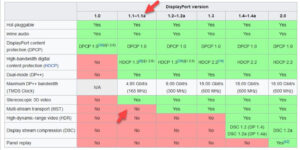
What Display Port protocol do the Teradici zero clients support?

PCoIP zero clients support Display Port protocol version 1.1a.

If a device is certified as Display Port 1.2 then it should be backward compatible to Display Port 1.1, the key word in this statement is should. There are monitors that claim to be Display Port 1.2 certified however they are not backward compatible.

Do the Zero Clients support VMware RTAV?

RTAV is not supported on PCoIP Zero Clients

How can I remove the user’s capability of changing the View Connection Server(VCS) address on the Zero Client’s OSD?

To remove the user’s capability of changing the View Connection Server(VCS) address on the Zero Client’s(ZC) OSD, please follow the instructions below.

Management Console 1.10.x

Using the Teradici Manage Console.

  1. Go to the profile that manages the ZCs you want to change.
  2. In the profile go to “Session Configuration”and click the “Edit Properties” link.
  3. Check the box for “Session Connection Type” and select “View Connection Server” in the drop down list.
  4. Check the box for “View Connection Server Address” and enter in the URL for the VCS.
  5. Check the box for “Connection Server Cache Mode” and in the drop down list select “Read Only”
  6. Scroll to the bottom and click the “Save” button.
  7. Apply the profile.

Management Console 2.x

  1. Go to the profile that manages the Zero Clients you want to change.
  2. Click on the Session tab in the left hand pane.
  3. Change your Session from Basic to Advance
  4. Set your Session Connection Type to View Connection Server
  5. Set your Server URI
  6. Scroll down and set your Connection Server Cache Mode to Read Only from the drop down.
  7. Scroll back to the top and click save then apply your profile.

Become a 10ZiG Ready Partner

Apply to become a 10ZiG Ready Partner HERE and let’s start creating great stories together.

Get Your 30-Day
Free Demo

Experience the power of 10ZiG risk-free. No credit card. No obligation.