HARDWARE
Compact, Energy-Efficient Devices for Remote Computing Access
Secure Endpoints with No Local Storage for Seamless Integration
Filter and view Modernized Thin Clients, Modernized Zero Clients, and Trusted Zero Clients with FREE Demo Access.
OPERATING SYSTEMS
The 10ZiG OS Family offers four Operating System options
SOFTWARE
Transform Existing Hardware into Secure, High-Performance Virtual Endpoints
MANAGEMENT
Streamline Endpoint Management with Our Free, Robust Software Solution
Answers at your fingertips to frequently asked questions can be found here. Reach out to our renowned US and EMEA based tech teams for additional support – [email protected] or [email protected]
Home FAQ
The most recent user guides can be found at https://www.10zig.com/user-guides/
When performing a major version upgrade, i.e. from 16.3.x to 16.5.x, you must perform the upgrade using the best practice upgrade path.
From versions 16.1.x, 16.2.x, and 16.3.x, this path would be to first upgrade from your current firmware version to 16.3.35.5, and then upgrade from 16.3.35.5 to 16.5.x.
Upgrade from our legacy 12.x firmware to 16.x is no longer supported, and will require a reimage of the device to the latest firmware.
NOTE: When performing any major version firmware update, is it always required to perform a full factory default after the update process. Do not use the check box in your Manager’s firmware update wizard for this; instead perform a factory default as a scheduled task after the update has been applied to the device.
Once the factory default is performed, you can then apply a configuration template created from the target firmware version to your newly updated devices. Do not attempt to use the configuration templates created on your previous firmware as they will not work and could leave your devices in an unusable state.
To handle updates for your Windows 10 IoT Devices, we recommend using the following packages for easy deployment. The UWF servicing package will disable the write filter and reboot the into a UWF Servicing account where all available Windows updates will be downloaded an applied. The client will not be usable while this occurs. Once updates are done it will reboot and disable the UWF Servicing account and will re-enable the write filter.
Once updates are installed, it is recommend to clean out the WinSXS folder so that the units do not run out of disk space. The below package will run dism.exe to free up the space consumed by the update packages.
Once the updates are done and the folder is cleaned up you can use the following package to disable Windows Updates so they do not interrupt your end users.
You can use the 10zig Manager to set all of these to run as a scheduled task to keep the units up to date without interaction.
NOTE: This process does not monitor available drive space before or during the update process. You must always ensure that you have adequate free space available on your 10ZiG client before running any Windows update to avoid leaving the unit in an unusable state.
The simplest way to reimage a single 10ZiG thin or zero client without using your 10ZiG Manager server is to use our USB Imaging Utility. You can download the latest version of the Utility from our Firmware Downloads page here.
For this process you will use a USB drive that is 32GB or smaller. It is recommended to avoid using SanDisk or Kingston drives as they have hidden partitions that will disrupt the imaging process.
The steps to use the USB utility to reimage your 10ZiG client are as follows.
There was a conversion to XML-based configuration in our 16.5.x branch of firmware. With the new XML format comes the requirement of leveraging the 10ZiG Manager’s Web Console for configuration and management of the clients. The new XML format is not compatible with the legacy MMC console and is unsupported there.
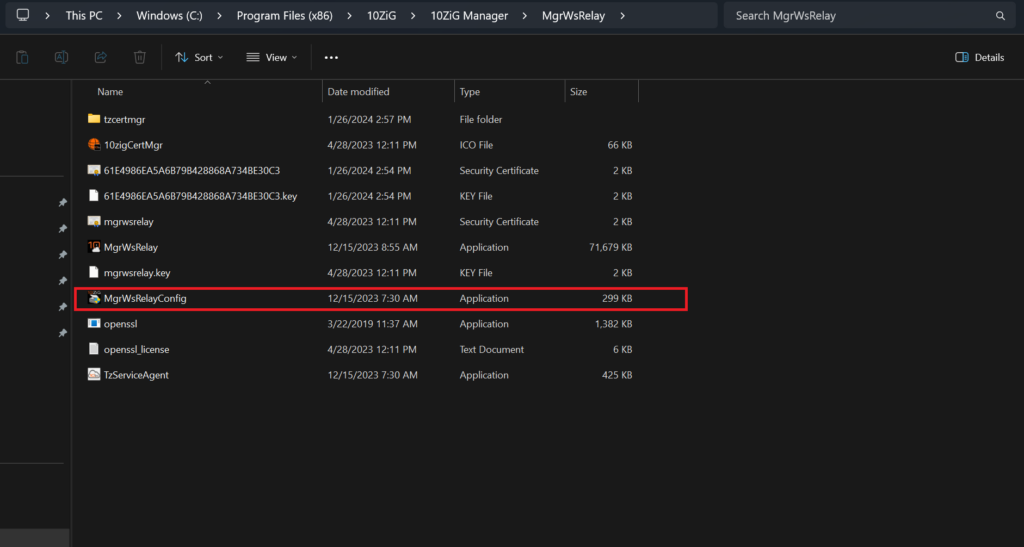
You can easily update the Secure Connector certificate by running the MgrWsRelayConfig program from the following directory: C:\Program Files (x86)\10ZiG\10ZiG Manager\MgrWsRelay

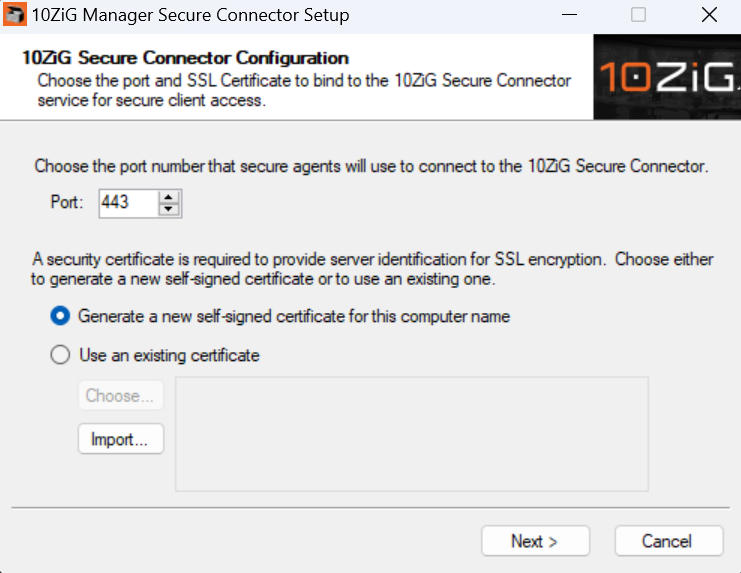
Running the MgrWsRelayConfig application will bring up the 10ZIG Manager Secure Connector Setup menu from where you will have the option to generate a new self-signed certificate or import an already existing cert.

If you would like to use an existing cert, click the “Import” button to import your desired certificate. You may also generate a self-signed certificate if desired.
Once the cert has been successfully imported, please restart the 10ZIG Manager Services to ensure the changes take effect.
From the console of your 10ZiG thin or zero client, press the CTRL, ALT, SHIFT and the zero key in the number line together. If there is a Control Panel password assigned to the client, you will be prompted to enter that password.
Once the password has been entered, the client will present a bash shell similar to a cmd shell in Windows. Type the words “factory all” without the quotes, and press ENTER.
This will factory default the client and then reboot it, allowing the unit to boot in a defaulted state. You can now reapply a configuration template to the device or configure it by hand to return it to service.
Download the Imprivata Compatibility Guide and Integration Guide.
Scanners must adhere to the SANE standard for functionality with Linux endpoints in order for them to be functional. Scanner Redirection is supported in both VMware and Citrix for scanners that support the SANE standard.
A comprehensive list of SANE-supportive scanners is available from the sane-project.org website.
On our Linux NOS™ and PKOS™ models press CTRL+F12 to disconnect from session. You must be at 10.12.156 or higher (NOS™) or at 12.0.127 (PKOS) or higher for this to work.
Click HERE for instructions/information for the new custom screensaver setting in PeakOS™.
When the Citrix receiver is run in full screen mode, the receiver grabs ALL input.
Possible solutions:
Use the screensaver in the Citrix session and disable the PeakOS™ screensaver.
Switch to desktop mode and run the Citrix session in a windowed mode.
Click Start, then click Run or go to Start/All Programs, Administrative Tools/Local Security Policy.
Type secpol.msc and then click OK.
Go to software restriction policies, right-click on Additional Rules.
Left-click New Path Rule…
Under Path, enter the patch to Internet Explorer (default path is C:\Program Files\Internet Explorer\IEXPLORE.EXE
Under Security Level, be sure that Security Level is set to Disallowed.
Click Apply.
If you have any additional questions you can contact support.10zig.com
PCoIP Host Software for Windows 4.3.1 only runs on Windows 7 64-bit and Windows 10 64-bit.
PCoIP_Host_Software_for_Windows_64-bit
To run Host Software on another Windows OS, including XP, Vista, Windows 7 32-bit and Windows 8.1 64-bit, use PCoIP Host Software for Windows 4.2.2.
PCoIP Host Software for Windows 32-bit 4.2.2
Tera2_Remote_Workstation_Card_Firmware_4.9.0_GA_Package.zip
Tera2 PCoIP Zero Client 4.x and Remote Workstation Card 4.9 Administrators’ Guide
Guides are included in the zip files!
Press CTRL+ALT+ESC to start the screen saver and then press the spacebar to unlock .
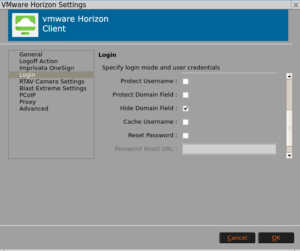
Go to Control Panel / VMware Horizon / Login, then enable the ‘Hide Domain Field’ option.

UWF is Unified Write Filter – please see documents below for more information.
Unified Configuration Tool Walkthrough_LH.PDF
The USB redirection feature that can be installed with Horizon Agent does not support webcam redirection. If you redirect audio input devices through USB redirection, the audio stream does not synchronize properly with video during Real-Time Audio-Video sessions, and you lose the benefit of reducing the demand on network bandwidth. You can take steps to ensure that webcams and audio input devices are redirected to your desktops through Real-Time Audio-Video, not USB redirection.
Open a bash shell using CTRL + ALT + SHIFT + 0 (Do Not Use Numeric Keypad). Type ‘host -t SRV _tzmgr_discovery._tcp.yourdomain.local’ – Where ‘yourdomain.local’ is the domain suffix assigned to the client via DHCP.
The USB video device class (also USB video class or UVC) is a USB device class that describes devices capable of streaming video like webcams, digital camcorders, analogue video converters, and still-image cameras. 10ZiG supports all UVC based Webcams across NOS/PKOS/RepurpOS platforms.
10ZiG has tested these specific webcam models*:
|
Make |
Model |
|
Logitech |
B910 |
|
Logitech |
C920 |
|
Logitech |
C270 |
|
Logitech |
C930e |
|
Microsoft |
LifeCam HD-3000 |
* supported webcams are not restricted to those listed. For more information please, contact support.
If the Syslog has messages similar to the ones below, the database is corrupt.
11-07-12 12:53:13:881 10ZiG Syslog Server started.
11-07-2012 12:53:14:006 <Error> MgrServer [DBConnection::ExecuteReader] : Command: ‘SELECT t1.*, t2.name FROM client AS t1 LEFT JOIN locks AS t2 ON t1.id = t2.name WHERE t1.id = ‘8000E0C545EC2C00” Failed : (OdbcException) ERROR [HY000] [MySQL][ODBC 3.51 Driver][mysqld-5.0.67-community]Table ‘.tenzigmgrclient’ is marked as crashed and should be repaired
11-07-2012 12:53:14:006 <Error> MgrServer [DAOThinClient::Get] : System.NullReferenceException: Object reference not set to an instance of an object.
at Tenzig.Manager.Server.Data.DAOThinClient.Get(String id)
11-07-2012 12:53:14:975 <Error> MgrServer [DBConnection::ExecuteScalar] : Command: ‘SELECT COUNT(*) FROM client WHERE id = ‘8000E0C545F0FC00” Failed : (OdbcException) ERROR [HY000] [MySQL][ODBC 3.51 Driver][mysqld-5.0.67-community]Table ‘.tenzigmgrclient’ is marked as crashed and should be repaired
11-07-2012 12:53:14:975 <Error> MgrServer [DBConnection::ExecuteNonQuery] : Command: ‘INSERT INTO client (id, platform, authorized, mac, wlan, lastip, name, type, vers, hw, ewf, domain_membership, domain_name, info, agent, time_stamp) VALUES(?, ?, ?, ?, ?, ?, ?, ?, ?, ?, ?, ?, ?, ?, ?, ?)’ Failed : (OdbcException) ERROR [HY000] [MySQL][ODBC 3.51 Driver][mysqld-5.0.67-community]Table ‘.tenzigmgrclient’ is marked as crashed and should be repaired
11-07-2012 12:53:14:990 <Error> MgrServer [DBConnection::ExecuteReader] : Command: ‘SELECT t1.*, t2.name FROM client AS t1 LEFT JOIN locks AS t2 ON t1.id = t2.name WHERE t1.id = ‘8000E0C545F0FC00” Failed : (OdbcException) ERROR [HY000] [MySQL][ODBC 3.51 Driver][mysqld-5.0.67-community]Table ‘.tenzigmgrclient’ is marked as crashed and should be repaired
11-07-2012 12:53:14:990 <Error> MgrServer [DAOThinClient::Get] : System.NullReferenceException: Object reference not set to an instance of an object.
To repair perform the following:
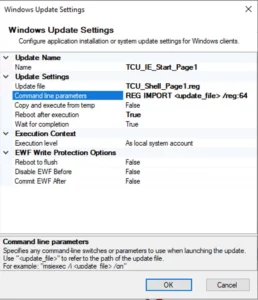
Assign the reg file containing necessary changes in the update file field and for command line parameters be sure to include the /reg:64 parameter as per following example ‘REG IMPORT /reg:64’

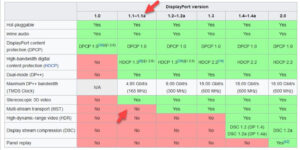
PCoIP zero clients support Display Port protocol version 1.1a.
If a device is certified as Display Port 1.2 then it should be backward compatible to Display Port 1.1, the key word in this statement is should. There are monitors that claim to be Display Port 1.2 certified however they are not backward compatible.

“NoNetConnectDisconnect”=dword:00000001″NoNetworkConnections”=dword:00000001″NoStartMenuNetworkPlaces”=dword:00000001
“NoEntireNetwork”=dword:00000001
The ESC key will enter the BIOS, except on the 7500 Series laptop form factor. The 7500 unit uses the F2 key.

The 10ZiG Manager uses UltraVNC viewer for shadowing thin clients. This viewer provides various additional features like chat and file transfer. These features can be accessed via hot key sequences that begin with “Ctrl+Alt
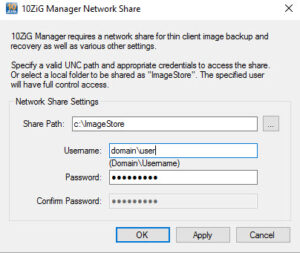
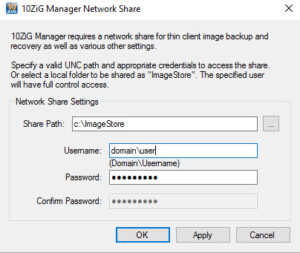
Make certain the Image Store path is set in the 10ZiG Manager setup

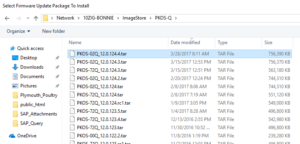
Copy the image file (.tar) to the image store folder.
If the thin client is on the network the 10ZiG Manager service is running it will displayed in the 10ZiG Manager console.
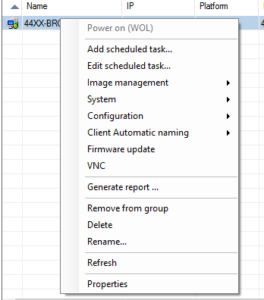
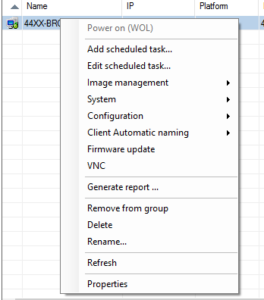
Right click on the thin client to be updated and select Firmware update.


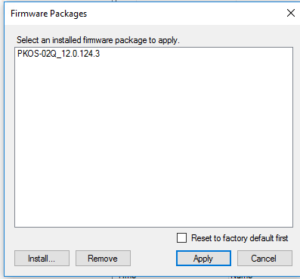
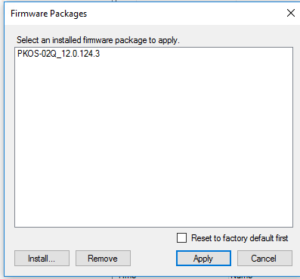
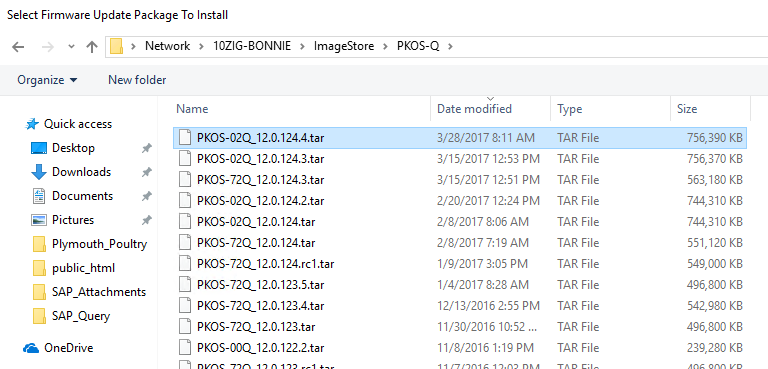
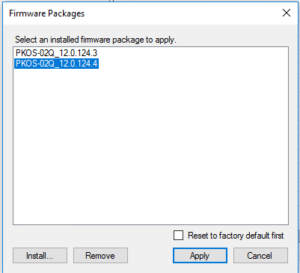
Select Install if you do not see the firmware you are looking to use to update the firmware. Highlight the firmware to install and select open. This process extracts the .tar into the 10ZiG Manager htdocs folder.

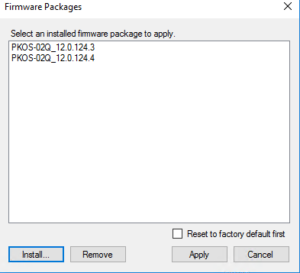
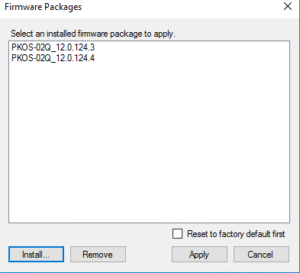
Once the package has been extracted, the firmware will be display as below:

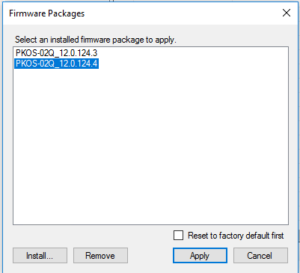
Highlight the package and select Apply.

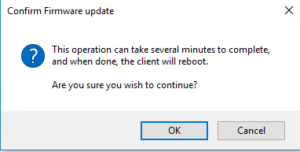
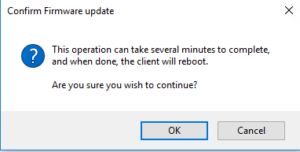
Select OK to continue with the firmware update.

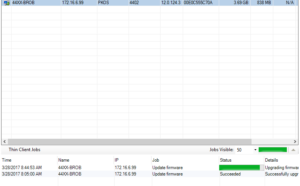
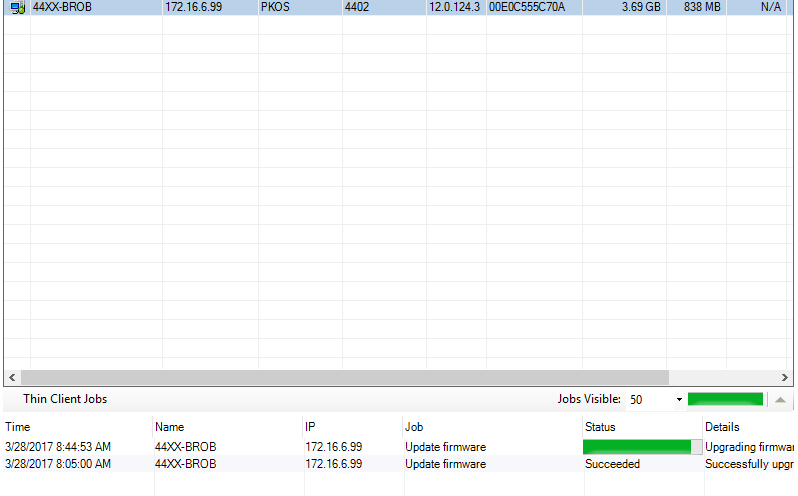
The update will show in the notification area at the bottom of the console.

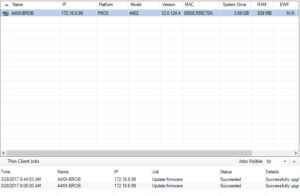
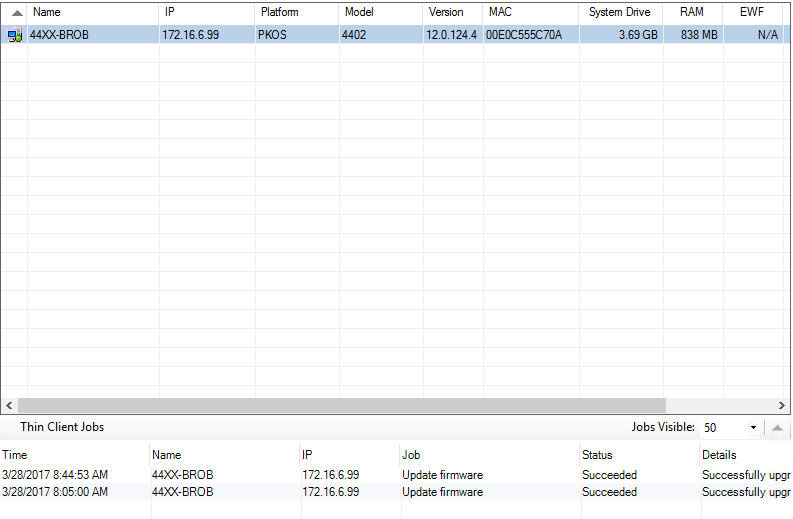
Once the firmware update is complete, the thin client will reboot. The 10ZiG Manager will now show the updated firmware.

Please see the document below:
How To Connect To A Terminal Server that requires NLA (Network Level Authentication)using RDP.docx
CTRL+F4 will exit the browser
Click here to download the Gemalto Driver
Input – Gemalto Minidriver for .NET Smart Card
The normal Gemalto card reader work fine with no driver
You have to log in as that user so the hive is loaded for that user and you have to add the registry hacks.
Below is a link that tells you where and what searches to use if applicable
http://www.winvistaclub.com/t78.html
Pay close attention to:
NoSearchCommInStartMenu : If enabled Start Menu search will not search for Communications.
NoSearchProgramsInStartMenu : If enabled Start Menu search will not search for Programs.
NoSearchInternetInStartMenu : If enabled Start Menu search will not search for Internet History
NoSearchFilesInStartMenu : If enabled Start Menu search will not search for Files
Enable num lock at startup
HKEY_CURRENT_USER
Control Panel
Keyboard
0 = Num Lock is turned OFF after the logon.
1 = Disable Num Lock.
2 = Numlock is turned ON after the logon.
To default any new user to have it automatically set to ON
HKEY_USER.DEFAULT
Control Panel
Keyboard
0 = Num Lock is turned OFF after the logon.
1 = Disable Num Lock.
2 = Numlock is turned ON after the logon.
The 10ZiG Manager communicates with the various thin clients on several network ports that will conflict with existing DHCP or Active Directory functionality; therefore, it is recommended that the Manager not be installed on computers that already host these services such as domain controllers.
Following are the associated ports for the 10ZiG Manager:
Cloud Connector Ports
Tip: If you are unable to PXE boot from your 10ZiG Manager, run a command prompt and type in netstat -abp udp to find out what services are bound to your ports.
A working example should look like this
UDP(DHCP/BOOTP) 0.0.0.0:67
[MgrService.exe]
UDP(TFTP) 0.0.0.0:69
[MgrService.exe]

Click here to download the 10ZiG Manager Cloud Connector Set Guide.
The sysprep settings are stored within the database. However, if you need to remove previously saved settings:
If the Syslog has messages similar to the ones below, the database is corrupt.
11-07-12 12:53:13:881 10ZiG Syslog Server started.
11-07-2012 12:53:14:006 <Error> MgrServer [DBConnection::ExecuteReader] : Command: ‘SELECT t1.*, t2.name FROM client AS t1 LEFT JOIN locks AS t2 ON t1.id = t2.name WHERE t1.id = ‘8000E0C545EC2C00” Failed : (OdbcException) ERROR [HY000] [MySQL][ODBC 3.51 Driver][mysqld-5.0.67-community]Table ‘.tenzigmgrclient’ is marked as crashed and should be repaired
11-07-2012 12:53:14:006 <Error> MgrServer [DAOThinClient::Get] : System.NullReferenceException: Object reference not set to an instance of an object.
at Tenzig.Manager.Server.Data.DAOThinClient.Get(String id)
11-07-2012 12:53:14:975 <Error> MgrServer [DBConnection::ExecuteScalar] : Command: ‘SELECT COUNT(*) FROM client WHERE id = ‘8000E0C545F0FC00” Failed : (OdbcException) ERROR [HY000] [MySQL][ODBC 3.51 Driver][mysqld-5.0.67-community]Table ‘.tenzigmgrclient’ is marked as crashed and should be repaired
11-07-2012 12:53:14:975 <Error> MgrServer [DBConnection::ExecuteNonQuery] : Command: ‘INSERT INTO client (id, platform, authorized, mac, wlan, lastip, name, type, vers, hw, ewf, domain_membership, domain_name, info, agent, time_stamp) VALUES(?, ?, ?, ?, ?, ?, ?, ?, ?, ?, ?, ?, ?, ?, ?, ?)’ Failed : (OdbcException) ERROR [HY000] [MySQL][ODBC 3.51 Driver][mysqld-5.0.67-community]Table ‘.tenzigmgrclient’ is marked as crashed and should be repaired
11-07-2012 12:53:14:990 <Error> MgrServer [DBConnection::ExecuteReader] : Command: ‘SELECT t1.*, t2.name FROM client AS t1 LEFT JOIN locks AS t2 ON t1.id = t2.name WHERE t1.id = ‘8000E0C545F0FC00” Failed : (OdbcException) ERROR [HY000] [MySQL][ODBC 3.51 Driver][mysqld-5.0.67-community]Table ‘.tenzigmgrclient’ is marked as crashed and should be repaired
11-07-2012 12:53:14:990 <Error> MgrServer [DAOThinClient::Get] : System.NullReferenceException: Object reference not set to an instance of an object.
To repair perform the following:
Check to see if the .tar file was renamed when it was downloaded. The 10ZiG Manager looks for a specific naming convention when it starts the firmware option, if that naming convention does not match up to what it requires it will fail. If this is the case, rename the file back to the original name and try the firmware update again.
Network address translation (NAT) is the process of modifying IP address information in IP packet headers while in transit across a traffic routing device. The 10ZiG Manager uses TCP and UDP ports on the network to communicate with the thin clients and using NAT would not work. If you use the cloud connector you will not need to NAT.

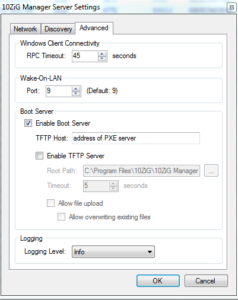
WOL uses UDP port 9 and sends a small broadcast to wake up the thin client. For WOL to work the network environment must support direct broadcasting. In addition network ranges of all clients requiring WOL must be defined within the 10ZiG Manager Console / Web Console under ‘Discovery’.
To update if your image is lower than 9.9.4 you must update using a binary image. Contact Tech Support for location and credentials to download updated image.
There are two are options – restore the binary image using the 10ZiG Manager (https://www.10zig.com/product/solutions/10zig-manager) or use a thumb drive created by TzImgUtil (See Question 3 under 10ZiG Manager to download the USB Image Utility).
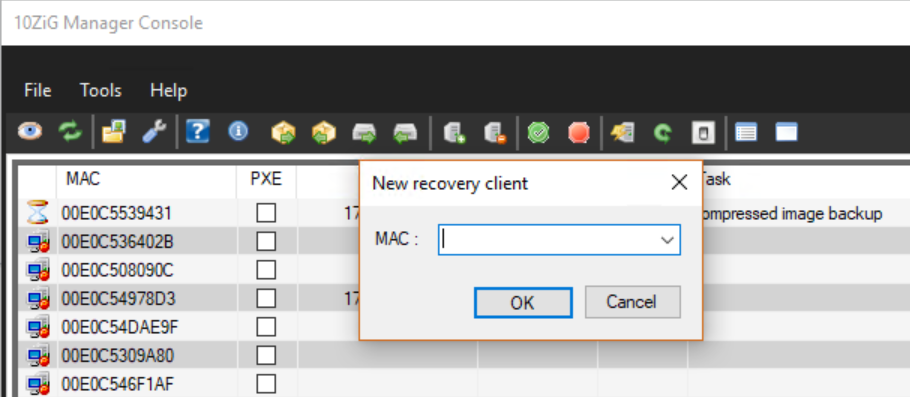
The thin client will be moved to the Image recovery tab with PXE set to Yes

If the thin client is not seen by the 10ZiG Manager, click on the Image recover tab and add the MAC address of the thin client using the Add MAC ICON ![]()
No, the 10ZiG Manager communicates with the thin clients using remote procedure call (RPC) and Active Directory relies on remote procedure call (RPC) for replication between domain controllers thus resulting in a conflict if on the same server.
No, PXE is part of BIOS and the BIOS only knows about the built in NIC.
The 10ZiG Manager HELP is the full manual.
Within the DHCP scope of each remote network segment, define the “Boot Server Host Name
The 10ZiG Manager uses UltraVNC viewer for shadowing thin clients. This viewer provides various additional features like chat and file transfer. These features can be accessed via hot key sequences that begin with “Ctrl+Alt
An explanation of the Cloning/Deploying and Backup/Restore and their differences:
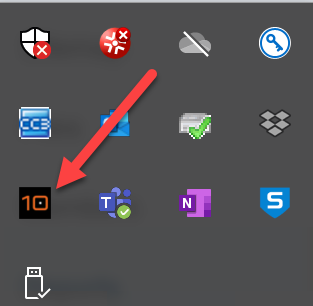
1. Right click on the 10ZiG Manager ICON in the notification area (lower right) and select Settings.

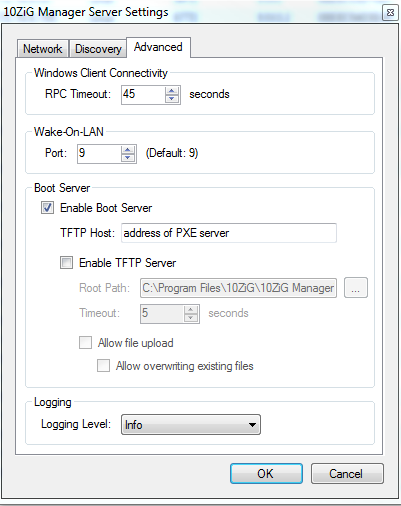
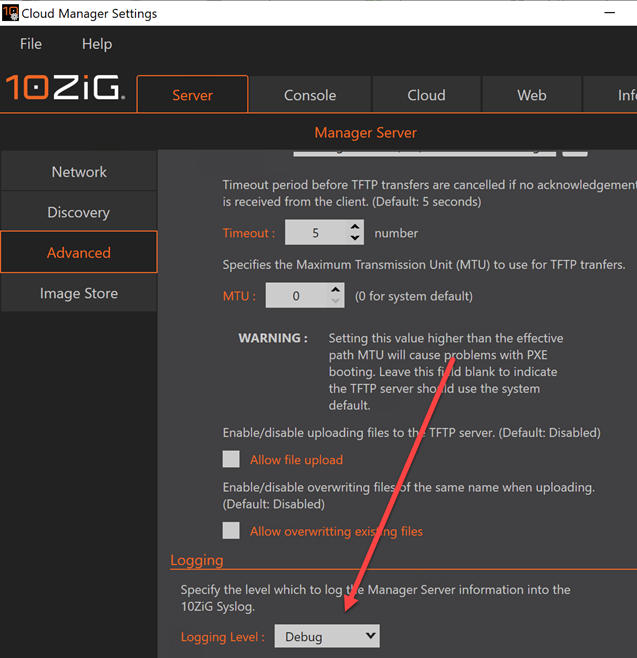
2. Go to the server tab and then Advanced on the left side and change the logging level at the bottom to debug and save settings. The manager should prompt you to you restart but if it does not, restart manually after this change.

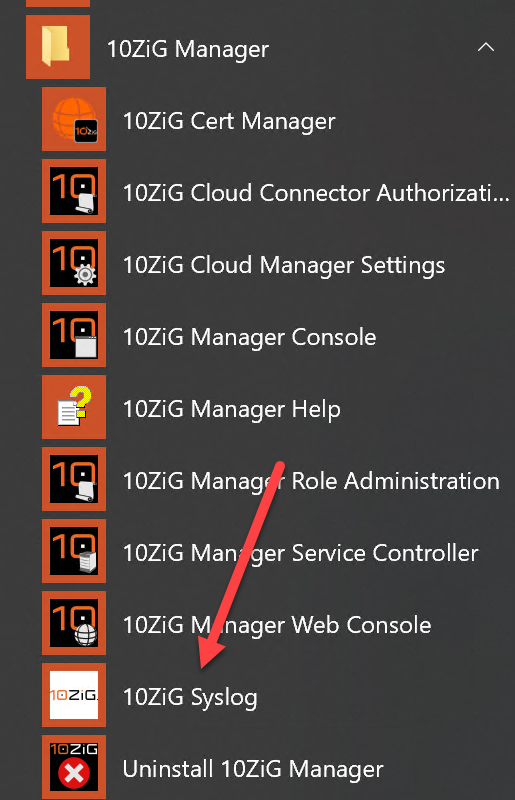
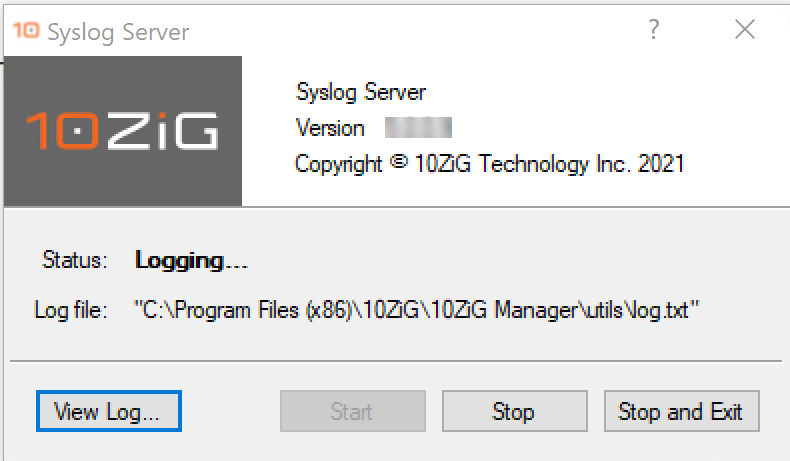
3. From the Windows Application Menu, select 10ZiG Syslog.

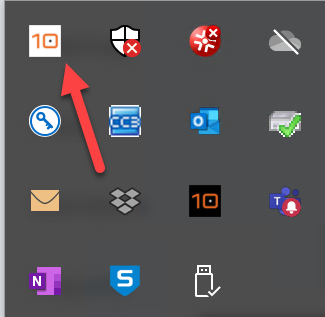
4. Double click on the log ICON in the notification tray.

5. Then click on View Log

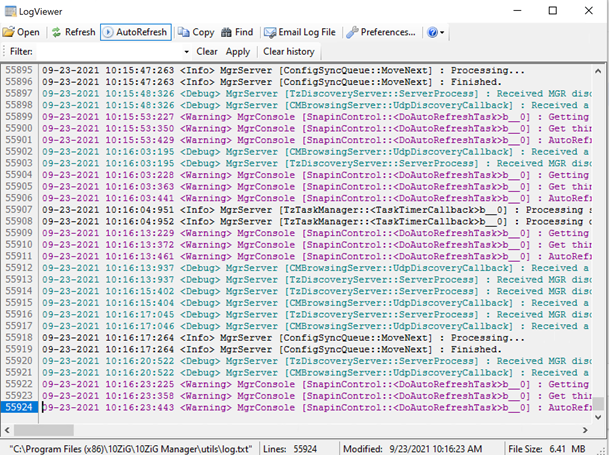
5. The image below is the log view. If you have email set up on this server/PC you can take the option to email the log file. Support techs will direct you where to send it.

6. You can also grab the log file directly and attach it to an email to send to 10ZiG support. The path to the file is at the bottom of the image above.
Make certain the Image Store path is set in the 10ZiG Manager setup

Copy the image file (.tar) to the image store folder.
If the thin client is on the network the 10ZiG Manager service is running it will displayed in the 10ZiG Manager console.
Right click on the thin client to be updated and select Firmware update.


Select Install if you do not see the firmware you are looking to use to update the firmware. Highlight the firmware to install and select open. This process extracts the .tar into the 10ZiG Manager htdocs folder.

Once the package has been extracted, the firmware will be display as below:

Highlight the package and select Apply.

Select OK to continue with the firmware update.

The update will show in the notification area at the bottom of the console.

Once the firmware update is complete, the thin client will reboot. The 10ZiG Manager will now show the updated firmware.

No, always create a new template from the updated firmware. Often times parameters may have changed in the new firmware that could become corrupt by applying an older template.
Open a bash shell using CTRL + ALT + SHIFT + 0 (Do Not Use Numeric Keypad). Type ‘host -t SRV _tzmgr_discovery._udp.yourdomain.local’ – Where ‘yourdomain.local’ is the domain suffix assigned to the client via DHCP.
A Service (SRV) record is a Domain Name System (DNS) resource record that is used to identify computers that host specific services. Clients query for a specific service/protocol name within a specific domain to receive the associated server hostname and port number.
SRV records are added to the “Forward Lookup Zone” for the DNS domain with the name formatted as “_servicename._protocol.domain” e.g. “_tzmgr_discovery._udp.example.com”
With the 10ZiG Manager, our Linux v9 (9.9.x or later) and Windows (XTC Agent 2.0.1.3 or later) devices can query for the manager server location and automatically initiate registration.
The manager now has the capability to automatically register an SRV record with a local Microsoft DNS server, assuming the user has the appropriate privileges. However, if the automatic SRV record creation fails, use the following instructions to manually add the record.
A DNS Service Location record can be created to provide the host name of the computer and port on which the 10ZiG Manager server is located allowing thin clients to “check-in
On the 10ZiG Manager Server PC, open regedit and navigate to ComputerHKEY_LOCAL_MACHINESOFTWAREWOW6432Node10ZiGMgrService. Create a new Reg DWORD value under MgrService key, with Name ‘AlwaysRetrieveBeforeTemplate’ and Value Data ‘1’. Restart the 10ZiG Manager Service to apply change.
Note: Do not use a Sandisk USB. Sandisk USB drives are recognized as a basic drive rather than a USB (removable) and the program will not be able to see them.
Download the Drive Imaging Utility and Guide below:
10ZiG Image Utility
Please email [email protected] (US) or [email protected] (EU) for the latest 10ZiG Manager download.
With RDS, all users share one server, which introduces some potential security risks.
In cloud-native virtualized desktops, the remote virtual desktop is hosted on a server in the cloud. A cloud-hosted virtual desktop infrastructure (VDI) solution has all the advantages of cloud infrastructure, such as:
Two types of VDI services use cloud infrastructure: fully managed and desktop as a service.
Fully managed VDI service is VDI management software that is available as a cloud-based service for your administrators. The service supports administrators by providing features like existing desktop image templates, built-in security and data encryption, and management of operating system licenses. Administrators perform the deployment, monitoring, application life cycle management, and other tasks to implement the service for your organization.
Desktop as a service is a third party that supports the implementation of managed VDI services. They deploy the fully managed service for your organization and also take over administration responsibilities, reducing the need for in-house IT capabilities. For example, Virtusa Desktop-as-a-Service is a scalable and flexible turnkey solution that you can deploy in just three days to allow your entire global organization to immediately begin working remotely. It supplies a full set of services, such as application lifecycle management, endpoint delivery, and ongoing VDI monitoring. Virtusa uses Amazon WorkSpaces as its managed cloud infrastructure.
Assuming all supporting infrastructure is functioning as intended, a user who remotely accesses a VDI solution from their endpoint can interact with applications and data as if they were running locally. This setup lets users safely access everything they need from virtually any device, without requiring specific hardware.
Augmented by solutions for convenient single sign-on (SSO) and secure remote access, virtual desktops can also be run and managed alongside the growing spectrum of cloud, web, and mobile apps that are integral to modern workflows. Employees get a unified experience that enables greater productivity, while IT avoids silos and mitigates the risk of unauthorized logins.
In other words, VDI in the context of a digital workspace platform contributes to a superior working environment without compromising on security. A reliable, economical VDI solution helps scale key applications and services to today’s increasingly mobile and remote teams. As part of the digital workspace experience, it delivers a consistent experience across devices including PCs, tablets, smartphones, and thin clients, giving employees and contractors a high degree of freedom in how they work.
The connection broker is the software that facilitates the remote connection between end users and the hypervisor-installed server. When a user connects to the remote desktop services, this software layer authenticates the user and gives them access to their virtual desktop environment. It also facilitates interactions between the remote user and the virtual desktop. For example, the connection broker provides screen updates and sends mouse clicks and keystrokes to the virtual desktop.
A desktop image is another term for virtual desktops. It’s a desktop template file that defines the operating system, configuration, and applications on the remote desktop. Golden images are standardized desktop images that administrators use to quickly deploy the same desktop for multiple users. Administrators use virtual desktop infrastructure (VDI) management software to manage the images in a central repository, such as by assigning them to users, maintaining different versions, or configuring system updates.
VDI software can also be a strong cost-saving measure for IT. Because the lion’s share of processing in VDI is server-based, relatively expensive or cutting-edge hardware is not needed. VDI access can instead take place from an inexpensive thin client, which might be an old PC that has been repurposed for the task and thereby had its lifespan extended. This saves IT the need to make as many new purchases or major adjustments to budget.
There are two types of virtual desktop infrastructure (VDI) deployment methods: persistent VDI and nonpersistent VDI:
Persistent VDI deployment
Persistent VDI deployments are remote desktops that are saved for individual end users. Multiple users have persistent desktops that they can customize and reuse repeatedly.
Nonpersistent VDI deployment
Nonpersistent VDI deployments are single-use desktop instances. The centralized server creates a new generic desktop for every user and then destroys the desktop after use. Nonpersistent desktops are cost effective when organizations have a large workforce using business applications for repetitive administrative tasks. For example, call center employees require a standard set of applications for their work. Any data they create is stored remotely in the business application. You can set up a new nonpersistent VDI for them in every session, and it will not cause them to lose any work.
Virtual desktop infrastructure (VDI) brings many benefits to desktop management. Virtual desktops are more convenient to manage and scale than physical desktops. For example, you can do the following tasks.
VDI brings centralized management to your virtual desktop environment. Administrators can patch, update, and change multiple virtual desktops at the same time. They can also save and back up desktop data for disaster recovery.
Since all VDI sits on a central system, you can easily scale it up or down. You can make it more flexible by hosting in the cloud. You can use a cloud service provider to deploy and manage thousands of virtual desktops without having to worry about underlying hardware costs.
You can access virtual desktop environments from anywhere and on any device. This improves user experience because you can bring your own device to the workplace or gain seamless remote access from any location. VDI creates a highly personalized digital workspace, making it more convenient to work from home or remotely.
The VDI environment is highly secure because the entire infrastructure is under enterprise control. Sensitive data from multiple virtual desktops sit on a single physical server. You can secure this centrally managed server or host server to meet internal standards. Remote workers can access the data from any device by following suitable authentication processes. The remote machines do not pose a security risk, even if they are lost or stolen.
VDI technology brings down IT expenditure because it reduces the hardware costs of purchasing new traditional desktops. It also reduces ongoing management costs because you can maintain virtual desktops by using software processes.
In VDI, a hypervisor segments servers into virtual machines that in turn host virtual desktops, which users access remotely from their devices. Users can access these virtual desktops from any device or location, and all processing is done on the host server. Users connect to their desktop instances through a connection broker, which is a software-based gateway that acts as an intermediary between the user and the server.
Virtual machines are the technology that powers VDI. VMs are software “machines” created by partitioning a physical server into multiple virtual servers through the use of a hypervisor. (This process is also known as server virtualization.) Virtual machines can be used for a number of applications, one of which is running a virtual desktop in a VDI environment.
Virtual desktop infrastructure (VDI) and virtual private networks (VPNs) are two technologies that your employees can use to remotely, securely access corporate networks and resources. VDI technology creates a virtual desktop on a central server. Your users can remotely access this desktop from any physical machine over the internet. You can use VDI to quickly and efficiently set up many virtual desktops for remote workers. In contrast, a VPN creates a private network connection between remote users and the corporate network over the public internet. VPN connections over the internet are less expensive and offer higher bandwidth than dedicated wide area network (WAN) links or long-distance, remote-dial links.
While it may seem like all these virtualization terms are just moving the word order around, there is a difference between a remote desktop environment and a virtual desktop infrastructure! Virtualizing desktops and application virtualization are generic computing terms for any technology that separates a desktop environment from the physical hardware used to access that desktop.
VDI is one popular type of desktop virtualization, but not all types of virtualization take advantage of host-based virtual machines like VDI does. Desktop virtualization can be used in other ways, such as remote desktop services (RDS)—where users connect to a shared desktop that runs on a remote server. So, when we say remote desktop, we’re really talking about a software or operating system feature that allows a computer’s desktop environment to be run remotely on one system while being displayed on a separate client device.
Virtual desktop infrastructure (VDI) is a software tool to centrally create and manage virtual desktops. Virtual desktops are software applications that mimic real desktop computers. VDI technology creates a virtual desktop on a central server, and remote users can access this desktop from any physical machine over the internet. VDI quickly and efficiently sets up many virtual desktops to provide secure remote access to internal business applications and services. Thus, using VDI, you can cost effectively and flexibly scale up any enterprise desktop infrastructure.
Monitors: Depending on the PCoIP Zero Client model, you can attach up to four monitors.
Analog devices: You can attach analog output devices such as headphones and speakers to the PCoIP Zero Client’s analog output (line out) jack, and analog input devices such as microphones and recording devices to the client’s analog input (line in) jack.
USB devices: You can attach a variety of USB devices to your PCoIP Zero Client. USB human interface device (HID) devices (e.g., keyboards, mice, Wacom tablets) are locally terminated by the client. Non-HID devices (e.g., mass storage devices, some printers, non-isocronous scanners) are automatically bridged. The drivers for many of these devices need to be installed in the host operating system (OS).
PCoIP Zero Clients are hardware- and firmware-based endpoints that allow users to connect remotely to PCoIP Remote Workstations, workstations running PCoIP Access Software, Teradici Pervasive Computing Platform desktops and workstations, Amazon WorkSpaces desktops, and VMware Horizon and VMware Horizon DaaS virtual desktops. Because they do not have general purpose CPUs, local data storage, or application operating systems, PCoIP Zero Clients are ultra secure and easy to manage. PCoIP Zero Clients contain upgradable firmware that allows you to customize your client with various features.
Slightly. Because a Zero client has fewer applications, there is much less that can be targeted by hackers. However, A Thin client is also quite secure as both use read-only operating systems.
Apart from this, as the user does not have access to the local OS in a Zero client, he can not go to any malicious websites that might pose a security risk to the endpoint.
Zero clients are slightly faster to boot because there is only one application running, so the boot process tends to be very fast. With a Thin client, you may have multiple applications running so it may take longer. That said, many vendors offer a management tool that allows boot timings to be pre-programmed.
Zero clients are made for one application to run at a time. If, for instance, one needs to run both RDS and VMware Horizon from the same endpoint, this would require a Thin client operating system.
There is no difference in the form factor between a thin and a Zero client. Generally, these are small devices that weigh a couple of pounds. They are fanless and very quiet. Typically they can be mounted on the back of a monitor to avoid crowding the desk space. Zero clients can also take the form factor of laptops or All-in-One devices (monitor with PC combined). Even former PCs can be made into Zero clients. It really comes down to the operating system that is running on the device of choice. Depending on the device, there will also be varying peripheral options (USB, COM port, wifi, RJ 45, HDMI, Display Port, etc…).
Thin clients cannot work without a server. Thin client only has OS locally and all the computing resources are present on the server. This server can be a cloud provider.
If you have more specific questions about thin clients or if you are considering a thin client project, feel free to contact us.
Thin clients can be used anywhere you would normally have a PC workstation. ACP has a number of partners who provide state of the art Thin Client hardware. These Thin Clients range from office grade, to light industrial, to heavy industrial including Class I Div 2.
Thin Clients are particularly favored in harsh conditions – most Thin Clients do not have cooling fans, are very small and easy to mount, and can be replaced within a minute or two.
If the number of employees present in your company are around 10 people, then it is relatively easy for your IT administrator to manage the company devices. Management of devices includes regular software updates, checking anti-virus, troubleshooting, security updates, control of Shadow IT, etc. But as the number of employees increases, all this becomes very difficult to manage since the administrator has to manage each endpoint one by one. Considering a thin client setup increases the security of your endpoints & simplifies the management of your endpoints as you can manage them remotely from anywhere.
Yes. The protocols that Thin Clients use to communicate with the server are standard Ethernet, and so don’t interfere at all with regular network traffic. In fact, there are many applications where replacing PCs with Thin Clients can actually decrease overall network traffic. Many of our customers install a Thin Client system gradually, first putting a Windows server on their network, and then replacing PCs one or two at a time with ACP Enabled Thin Clients.
A thin client is used to access enterprise resources present on the remote server. “But you can do this with a normal PC right?” This is absolutely right. The real use of a thin client arises when it comes to security and managing them remotely without any effort, all while reducing energy consumption, electromagnetic waves, noise pollution, etc…, and increasing the hardware life span. Thin clients come with a read only OS. The user cannot modify any local configuration (installing an application, changing settings, etc…) which makes thin clients extremely secure. The remote management software provided with your thin client allows you to securely manage all of the thin clients remotely from anywhere. Imagine a company with 1000 endpoints, on which you need to apply a new template. You can perform this remotely, with just a few clicks, from your remote management tool.
The main reason thin clients are better than PCs is because they offer “Lower Total Cost of Ownership”. By reducing maintenance and install time, thin clients keep downtime to an absolute minimum. For example, to update 5 PCs you need to reinstall and configure all 5 PCs one at a time. With thin clients you would simply make the update once on the server and all 5 thin clients would realize the update immediately.
ThinManager software allows you to configure and manage all connected thin clients from the central, secure server.
A thin client is a device which is used to remotely connect to a server-based computing environment. Unlike a normal PC, a thin client doesn’t have any computing resources (applications, data & memory) locally. All of the computing resources are present on the server. So, a thin client is a device which runs on the computing resources present on the server. Thin clients generally come with very small hardware specs as the server does all of the computing work.
The 10ZiG 6100 series supports this resolution. At this time other models are not supported.
The Parallels x64 Linux Client is currently available as an addon for PeakOS 64 firmware. Existing NOS 32 (10.12.x) and PeakOS 32 (12.x.x) customer’s are required to convert to PeakOS 64 (16.2.x) firmware in order to support this. Contact 10ZiG Technical Support here for obtaining the firmware and Parallels addon.
Please click here for the 10ZiG Technology security vulnerability statement.
Experience the power of 10ZiG risk-free. No credit card. No obligation.