What ports are used by the 10ZiG Manager?

The 10ZiG Manager communicates with the various thin clients on several network ports that will conflict with existing DHCP or Active Directory functionality; therefore, it is recommended that the Manager not be installed on computers that already host these services such as domain controllers.

Following are the associated ports for the 10ZiG Manager:

  • Network Ports and Purpose
    • TCP 3306 – Used by the local MySQL service hosting the Manager database.
    • TCP 11132 – The Manager Console retrieves information from the Server via this port.
    • TCP 11133-11147 – A Manager Console will register one of the ports in this range, usually 11133, with the Server to receive various notifications.
    • TCP 445 – Used in the PXELinux image for authentication to the ImageStore share.
  • Client Discovery and Communication Ports
    • UDP/TCP 52500 – Broadcast discovery port for Windows (XTC Agent).
    • TCP 52510 – This RPC port is used by Manager Server to perform remote operations and queries on Windows (XTC Agent) clients.
    • TCP 52511 – This RPC port is used Windows (XTC Agent) clients to notify the manager server when they come online or are going offline.
    • TCP 80/443 (HTTP/HTTPS) -These Web ports are used by Manager Server to query information from and perform operations on Linux clients.
    • TCP 8001 – The Manager Server publishes firmware update packages for Linux clients on this port.
  • Template Port – Linux
    • WEBDAV on port 80 for standard connections or a websocket tunnel on client initiated webtunnel in the case of “cloud connected” (default cc port would be 443).
  • PXE Boot Ports
    • UDP 67 (DHCP/BOOTP)- The Manager Server responds to DHCP/BOOTP requests from this port for PXE-Booting clients for image deployment/recovery.
    • UDP 68 (DHCP/BOOTP)- The client listens for responses to DHCP/BOOTP requests from manager server for image deployment/recovery.
    • UDP 69 (TFTP) – When PXE-Booting, the PXE configuration and boot image are transferred to the client via TFTP
  • Syslog Port
    • UDP 51

Cloud Connector Ports

    • 443 – or whatever port you assigned the CC.

Tip: If you are unable to PXE boot from your 10ZiG Manager, run a command prompt and type in netstat -abp udp to find out what services are bound to your ports.

A working example should look like this

UDP(DHCP/BOOTP) 0.0.0.0:67
[MgrService.exe]
UDP(TFTP) 0.0.0.0:69
[MgrService.exe]

Where can I find a setup guide for the 10ZiG Manager Cloud Connector?

Click here to download the 10ZiG Manager Cloud Connector Set Guide.

How do I remove previously saved sysprep files?

The sysprep settings are stored within the database. However, if you need to remove previously saved settings:

  1. Choose the desired configuration from selection panel of the “Clone System Image

I’m getting messages in the SYSLOG that looks like the 10ZiG Manager’s MYSQL database is corrupt – how can I fix it?

If the Syslog has messages similar to the ones below, the database is corrupt.

11-07-12 12:53:13:881 10ZiG Syslog Server started.
11-07-2012 12:53:14:006 <Error> MgrServer [DBConnection::ExecuteReader] : Command: ‘SELECT t1.*, t2.name FROM client AS t1 LEFT JOIN locks AS t2 ON t1.id = t2.name WHERE t1.id = ‘8000E0C545EC2C00” Failed : (OdbcException) ERROR [HY000] [MySQL][ODBC 3.51 Driver][mysqld-5.0.67-community]Table ‘.tenzigmgrclient’ is marked as crashed and should be repaired
11-07-2012 12:53:14:006 <Error> MgrServer [DAOThinClient::Get] : System.NullReferenceException: Object reference not set to an instance of an object.

at Tenzig.Manager.Server.Data.DAOThinClient.Get(String id)
11-07-2012 12:53:14:975 <Error> MgrServer [DBConnection::ExecuteScalar] : Command: ‘SELECT COUNT(*) FROM client WHERE id = ‘8000E0C545F0FC00” Failed : (OdbcException) ERROR [HY000] [MySQL][ODBC 3.51 Driver][mysqld-5.0.67-community]Table ‘.tenzigmgrclient’ is marked as crashed and should be repaired
11-07-2012 12:53:14:975 <Error> MgrServer [DBConnection::ExecuteNonQuery] : Command: ‘INSERT INTO client (id, platform, authorized, mac, wlan, lastip, name, type, vers, hw, ewf, domain_membership, domain_name, info, agent, time_stamp) VALUES(?, ?, ?, ?, ?, ?, ?, ?, ?, ?, ?, ?, ?, ?, ?, ?)’ Failed : (OdbcException) ERROR [HY000] [MySQL][ODBC 3.51 Driver][mysqld-5.0.67-community]Table ‘.tenzigmgrclient’ is marked as crashed and should be repaired
11-07-2012 12:53:14:990 <Error> MgrServer [DBConnection::ExecuteReader] : Command: ‘SELECT t1.*, t2.name FROM client AS t1 LEFT JOIN locks AS t2 ON t1.id = t2.name WHERE t1.id = ‘8000E0C545F0FC00” Failed : (OdbcException) ERROR [HY000] [MySQL][ODBC 3.51 Driver][mysqld-5.0.67-community]Table ‘.tenzigmgrclient’ is marked as crashed and should be repaired
11-07-2012 12:53:14:990 <Error> MgrServer [DAOThinClient::Get] : System.NullReferenceException: Object reference not set to an instance of an object.

To repair perform the following:

  1. Shutdown the Manager service and make certain the “TzMySQL

I’m attempting to update my Linux thin client using a downloaded or .tar file, but it starts and fails immediately.

Check to see if the .tar file was renamed when it was downloaded. The 10ZiG Manager looks for a specific naming convention when it starts the firmware option, if that naming convention does not match up to what it requires it will fail. If this is the case, rename the file back to the original name and try the firmware update again.

Is NAT (Network Address Translation) supported when the 10ZiG Manager and the thin clients reside behind a NAT’d firewall or router?

Network address translation (NAT) is the process of modifying IP address information in IP packet headers while in transit across a traffic routing device. The 10ZiG Manager uses TCP and UDP ports on the network to communicate with the thin clients and using NAT would not work. If you use the cloud connector you will not need to NAT.

I’m not seeing all my thin clients in the 10ZiG Manager and when I look at the SYSLOG, it indicates the program cannot access the database.

The database lock is most likely an issue with the anti-virus software installed on the PC – exclude the 10ZiG Manager and MYSQL programs in the anti-virus program and the 10ZiG Manager should pick the thin clients.

How can I use an existing PXE server to push out images to thin clients?

  1. Copy all the files from the tftp folder from the 10ZiG Manager install folder to the existing PXE server in the published files directory.
  2. Place the image in the general repository directory on the existing PXE server.
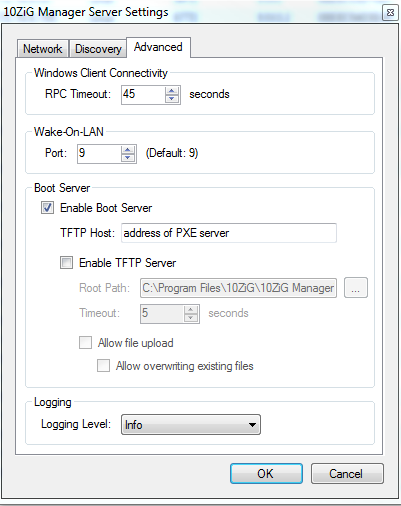
  3. Go into the manager server settings (right click on the ICON down near the time on your PC and select settings) – Advanced Tab – Uncheck Enable TFTP server and under the TFTP Host put the IP of the existing PXE server. Boot the thin client in PXE mode and you should be able to restore the image from the existing PXE server.


I have a Linux thin client that shows up with the name NONE.

Most likely the name of the thin client has been changed to a name with a space in it – remove the space and it will show up in the manager with the correct name.

WOL (Wake On LAN) function is not working – I can shut the thin clients down but I can’t power them on.

WOL uses UDP port 9 and sends a small broadcast to wake up the thin client. For WOL to work the network environment must support “direct broadcasting

I’m trying to update my older Linux thin client using a tar file in the 10ZiG Manager, but it fails. What should I do?

To update if your image is lower than 9.9.4 you must update using a binary image. Contact Tech Support for location and credentials to download updated image.

There are two are options – restore the binary image using the 10ZiG Manager (https://www.10zig.com/product/solutions/10zig-manager) or use a thumb drive created by TzImgUtil (See Question 3 under 10ZiG Manager to download the USB Image Utility).

Update using 10ZiG Manager

    1. Install the 10ZiG Manager and copy the binary file to 10ZiG Manager\ImageStore (created when you install the 10ZiG Manager)
    2. If the thin client is seen in the 10ZiG Manager, right click on it, select Image Management and then Backup and Restore

The thin client will be moved to the Image recovery tab with PXE set to Yes

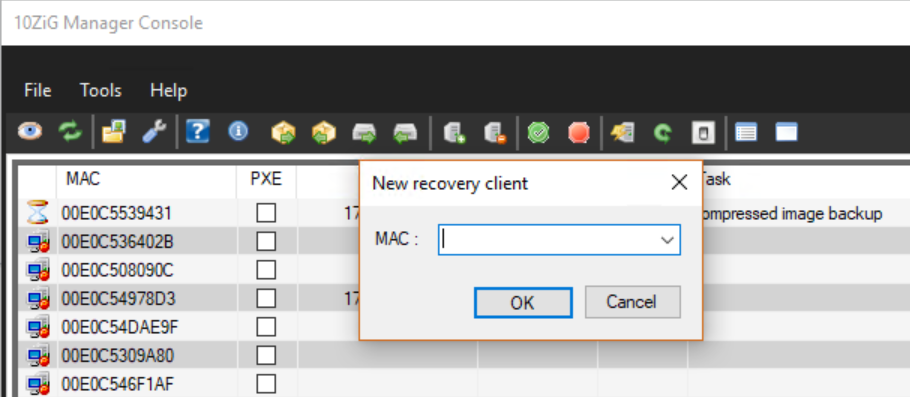
If the thin client is not seen by the 10ZiG Manager, click on the Image recover tab and add the MAC address of the thin client using the Add MAC ICON

  • Change the BIOS settings of the thin client to boot from LAN (BIOS password is 10ZIG)
  • Boot the thin client and it will PXE boot to the 10ZiG Manager
  • When the thin client has booted it will be displaying a recovery menu on the display but do not use that menu, rather use the Image recovery tab. Right click on the thin client to be reimaged (it should now indicate PXE YES with a green dot) and select Restore Binary Image>
  • Select the image file to be restored
  • The 10ZiG Manager will restore the image and indicate a successful restore when complete
  • Right click on the thin client and deselect the PXE boot option
  • Reboot the thin client which now has the updated image

Update using a USB Thumb Drive

  1. Download the image utility from our FAQ pages (See Question 3 under 10ZiG Manager to download the USB Image Utility and documentation).
  2. Extract the utility and run the program to make a USB thumb drive bootable for the utility
  3. Make certain you format as fat32 and the USB thumb drive needs to be large enough to hold the boot files and the binary fileNote: This program will erase all files on the thumb drive
  4. Enter the BIOS of the thin client (password 10ZIG) and set the first boot to USB (on some units the option may be USB Zip)
  5. Boot the thin client using the created USB thumb drive
  6. Use the menu on the display to restore the image
  7. Once complete reboot with thumb drive removed to an updated image

Can I run the 10ZiG Manager on the same server as my Active Directory server?

No, the 10ZiG Manager communicates with the thin clients using remote procedure call (RPC) and Active Directory relies on remote procedure call (RPC) for replication between domain controllers thus resulting in a conflict if on the same server.

Become a 10ZiG Ready Partner

Apply to become a 10ZiG Ready Partner HERE and let’s start creating great stories together.

Get Your 30-Day
Free Demo

Experience the power of 10ZiG risk-free. No credit card. No obligation.