How can I enable logging for the 10ZiG Manager server?

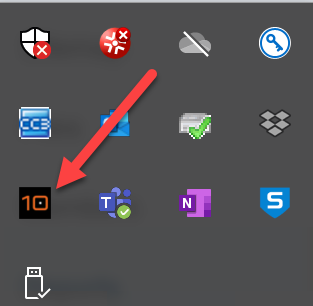
1. Right click on the 10ZiG Manager ICON in the notification area (lower right) and select Settings.
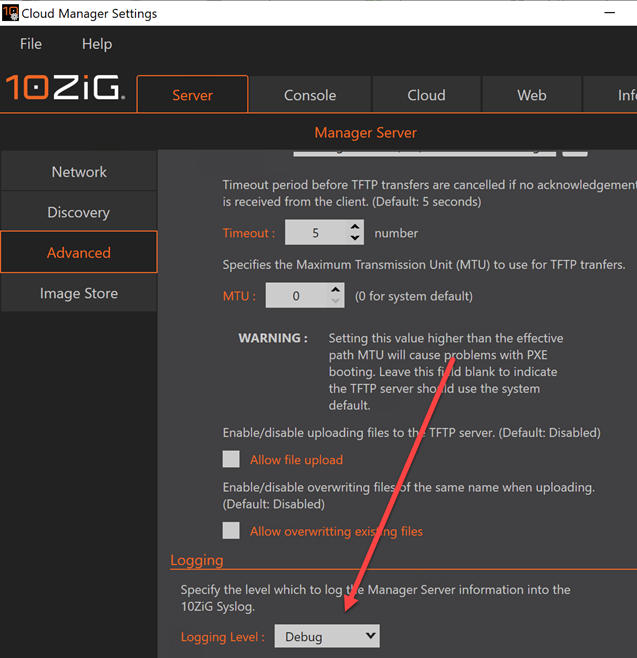
2. Go to the server tab and then Advanced on the left side and change the logging level at the bottom to debug and save settings. The manager should prompt you to you restart but if it does not, restart manually after this change.
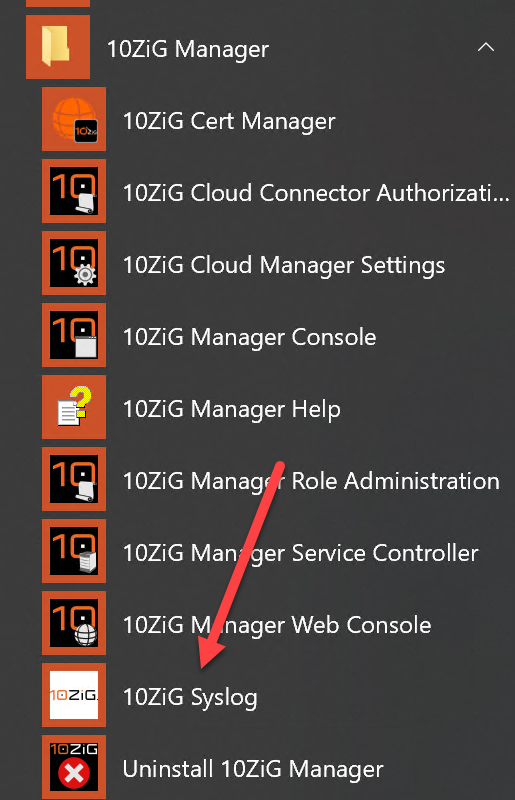
3. From the Windows Application Menu, select 10ZiG Syslog.
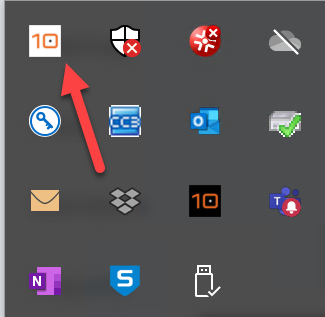
4. Double click on the log ICON in the notification tray.
5. Then click on View Log
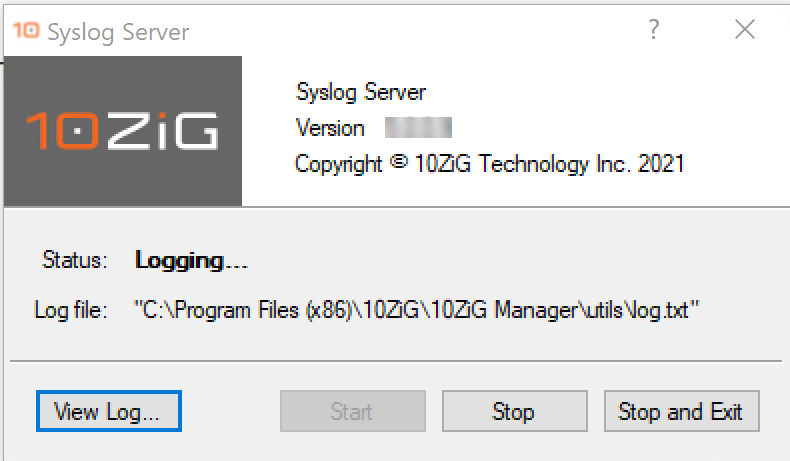
5. The image below is the log view. If you have email set up on this server/PC you can take the option to email the log file. Support techs will direct you where to send it.
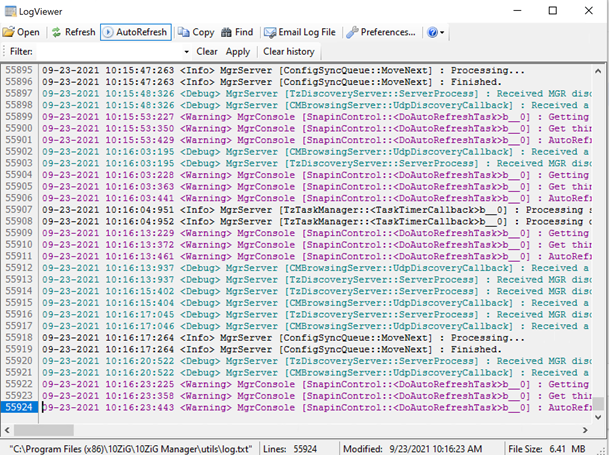
6. You can also grab the log file directly and attach it to an email to send to 10ZiG support. The path to the file is at the bottom of the image above.
How do I update the firmware on a Linux thin client using the 10ZiG Manager?

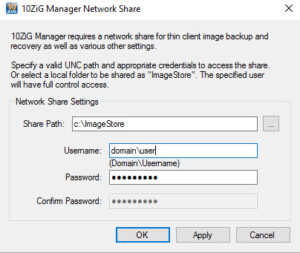
Make certain the Image Store path is set in the 10ZiG Manager setup

Copy the image file (.tar) to the image store folder.

If the thin client is on the network the 10ZiG Manager service is running it will displayed in the 10ZiG Manager console.

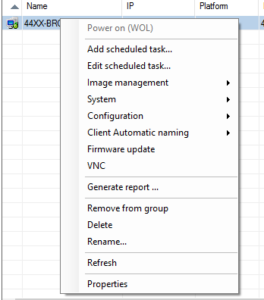
Right click on the thin client to be updated and select Firmware update.

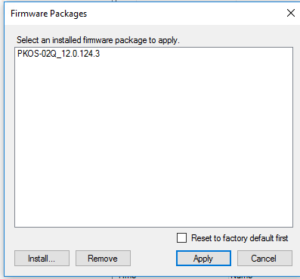
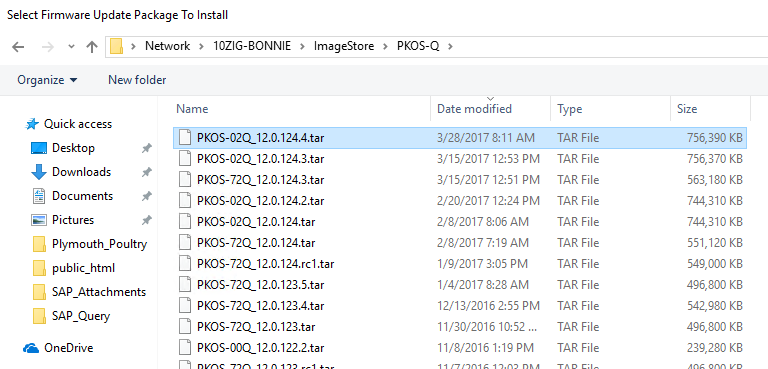
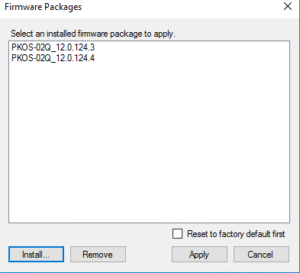
Select Install if you do not see the firmware you are looking to use to update the firmware. Highlight the firmware to install and select open. This process extracts the .tar into the 10ZiG Manager htdocs folder.

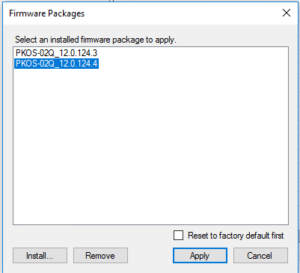
Once the package has been extracted, the firmware will be display as below:

Highlight the package and select Apply.

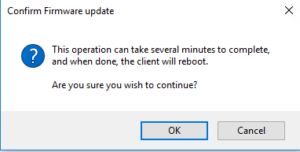
Select OK to continue with the firmware update.

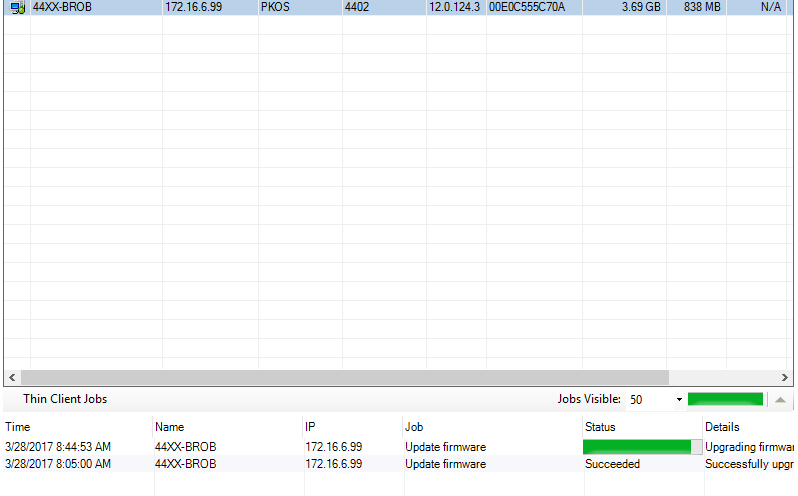
The update will show in the notification area at the bottom of the console.

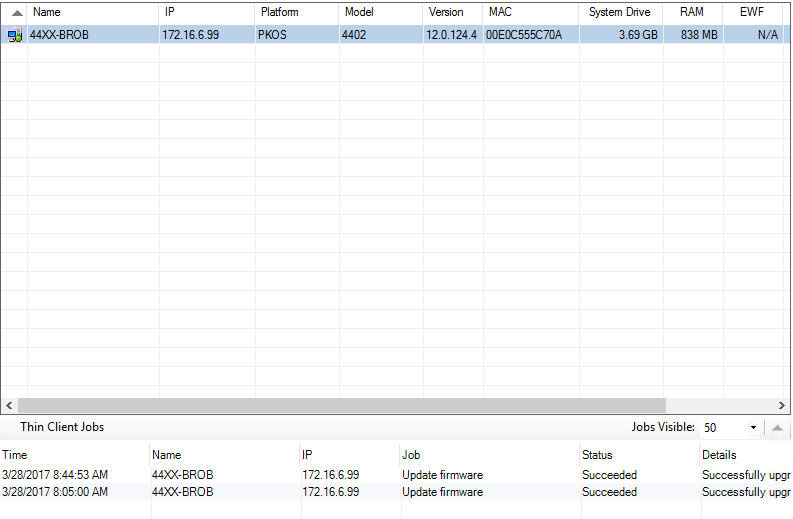
Once the firmware update is complete, the thin client will reboot. The 10ZiG Manager will now show the updated firmware.


After updating my firmware, can I apply my older template?

No, always create a new template from the updated firmware. Often times parameters may have changed in the new firmware that could become corrupt by applying an older template.

How can I copy/move an existing 10ZiG Manager database to another computer?

How can I query the 10ZiG Manager DNS UDP SRV record from a PeakOS / RepurpOS / NOS client?

Open a bash shell using CTRL + ALT + SHIFT + 0 (Do Not Use Numeric Keypad). Type ‘host -t SRV _tzmgr_discovery._udp.yourdomain.local’ – Where ‘yourdomain.local’ is the domain suffix assigned to the client via DHCP.

How can I add a DNS Service Location Record for the 10ZiG Manager server?

A Service (SRV) record is a Domain Name System (DNS) resource record that is used to identify computers that host specific services. Clients query for a specific service/protocol name within a specific domain to receive the associated server hostname and port number.

SRV records are added to the “Forward Lookup Zone” for the DNS domain with the name formatted as “_servicename._protocol.domain” e.g. “_tzmgr_discovery._udp.example.com”

With the 10ZiG Manager, our Linux v9 (9.9.x or later) and Windows (XTC Agent 2.0.1.3 or later) devices can query for the manager server location and automatically initiate registration.

The manager now has the capability to automatically register an SRV record with a local Microsoft DNS server, assuming the user has the appropriate privileges. However, if the automatic SRV record creation fails, use the following instructions to manually add the record.

A DNS Service Location record can be created to provide the host name of the computer and port on which the 10ZiG Manager server is located allowing thin clients to “check-in

Is it possible for the 10ZiG Manager to automatically retrieve the latest configuration before applying templates?

On the 10ZiG Manager Server PC, open regedit and navigate to Computer\HKEY_LOCAL_MACHINE\SOFTWARE\WOW6432Node\10ZiG\MgrService. Create a new Reg DWORD value under MgrService key, with Name ‘AlwaysRetrieveBeforeTemplate’ and Value Data ‘1’. Restart the 10ZiG Manager Service to apply change.

How can I backup or restore an image on a thin client using a USB thumb drive?

Note: Do not use a Sandisk USB. Sandisk USB drives are recognized as a basic drive rather than a USB (removable) and the program will not be able to see them.

Download the Drive Imaging Utility and Guide below:

10ZiG Image Utility

Image Utility Guide

Where can I download the 10ZiG Manager?

Please email [email protected] (US) or [email protected] (EU) for the latest 10ZiG Manager download.

Become a 10ZiG Ready Partner

Apply to become a 10ZiG Ready Partner HERE and let’s start creating great stories together.

Get Your 30-Day
Free Demo

Experience the power of 10ZiG risk-free. No credit card. No obligation.